Install Signal Loom for TPT
Signal Loom for TPT is a small browser extension. It reads the public TPT product pages you already have open, so Signal Loom can capture listing details for Capture product pages and Visual Signals. It does not use your TPT login, and it never touches your private seller dashboard.
Official Chrome Web Store listing ↗🔒 This browser extension is for Signal Loom Pro and Premium tiers
It works from the Products tab (Pro) and Visual Signals (Premium). See what's in each plan.
1. Install it with Chrome
- Open the install link from your Signal Loom dashboard, or use it directly: Signal Loom for TPT on the Chrome Web Store ↗
- Click Add to Chrome.
- Click Add extension on the confirmation prompt.
You'll see a short "Signal Loom for TPT is added to Chrome" confirmation. That's it, no separate sign-in for the extension itself.
Then return to Signal Loom. Refresh any TPT product tabs that were already open before you installed, enabled, or updated the extension. In the Products tab, choose Check again if Signal Loom has not noticed the extension yet.
Using a browser that isn't Chrome
Signal Loom for TPT works on other Chromium browsers, but they may block installs from the Chrome Web Store by default. One-time fix:
- Edge: go to
edge://extensions, turn on Allow extensions from other stores, then use the install link again. - Brave: confirm the one-time prompt asking to allow the install from Chrome Web Store.
- Opera: install the "Install Chrome Extensions" add-on from the Opera add-ons store first, then use the install link.
Firefox, Safari, or another non-Chromium browser: Firefox supports extensions, but Signal Loom for TPT is not packaged or tested for it yet. The extension can't be installed in these browsers today. The simplest fix is to install Chrome (free, works alongside Safari) and use it just for capturing TPT product pages. Your Signal Loom account and data work the same in any browser, this only affects the extension itself.
iPad, iPhone, or Android: the extension can't be installed on tablets or phones at all, on any browser, this is an OS limit, not something we can fix. The rest of Signal Loom, including CSV upload, works fine on those devices.
The permission prompt
Chrome will ask to let the extension read and change your data on teacherspayteachers.com and Signal Loom's own domains, and to "read your browsing history." That second one sounds bigger than it is: Chrome shows that label any time an extension can see open tab URLs. Signal Loom only uses it at the moment you choose Capture product pages or Capture storefront page, to find which of your open tabs are TPT product pages. It does not log, store, or send your general browsing history anywhere.
2. Confirm it's working
Click the Signal Loom icon in your browser toolbar. You should see this:
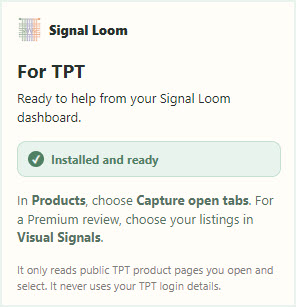
If it says something else, or the icon isn't there, open chrome://extensions (or your browser's equivalent) and check it's enabled. Pinning it to the toolbar (the pin icon in the extensions menu) makes it easier to check at a glance later.
3. Using it
You don't open the extension itself to do anything. From your Signal Loom dashboard:
- Products tab → open the TPT product pages you want to review in separate browser tabs → Capture product pages. You can capture up to 10 new product pages a day; re-checking one you already captured does not use that allowance. Capture storefront page reads your public storefront instead, for banner, About, category, and featured-resource checks.
- Visual Signals (Premium) → pick listings to review → open their pages in tabs → capture, same as above. This also pulls cover images and the preview PDF for a full visual review. You can start up to 5 review runs a day, with up to 5 listings in each run.
If a capture doesn't work
- Close your browser and open it again.
- Make sure the TPT product page is fully loaded before capturing.
- Make sure the page belongs to your own connected store. Signal Loom skips tabs from other sellers automatically.
- On a school or district-managed Chrome profile, IT policy can block the install with no prompt at all. Ask your admin to allowlist the extension, or use a personal Chrome profile.
- Refresh your Signal Loom dashboard tab and try again. If it still doesn't work, contact support at support@graphene-edu.com.